Definitely this is something new, following the high profile leaks of stolen private photos of celebrities.
Apple now informs users whenever Apple ID is used to sign in to iCloud.
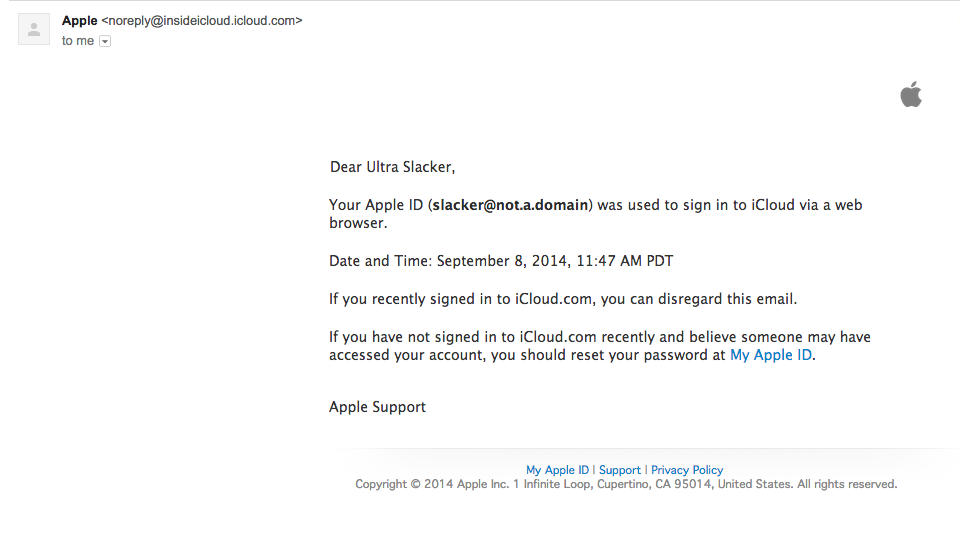
Phishing email targets iCloud users in effort to steal password, credit card and security questions.
If you received this email, please forward the email as attachment to spam@icloud.com
OS X Mail
- Open the message and choose “Forward as Attachment” from the Message menu.
- Forward the message to iCloud spam@icloud.com.
- Forward the message again to abuse@domain, replacing domain with the part of the sender’s email address after the @ symbol. For example, if the sender’s email address is spammer@spammydomain.com, forward the message to abuse@spammydomain.com.
Microsoft Outlook 2010 and Outlook 2013
- Choose File > Options.
- In the Options window, click Mail in the left-hand panel.
- In the “Replies and Forwards” section, note the current setting so that you can change it back later. Then change the “When forwarding a message” setting to “Attach original message”.
- Click OK.
- Forward the message to iCloud spam@icloud.com.
- Forward the message again to abuse@domain, replacing domain with the part of the sender’s email address after the @ symbol. For example, if the sender’s email address is spammer@spammydomain.com, forward the message to abuse@spammydomain.com.
- To return Outlook to your previous settings, repeat steps 1 to 4, but in step 3 change the “When forwarding a message” setting back to the way it was. If you don’t remember the setting, choose “Include original message text”.
Microsoft Outlook 2007
- Choose Tools > Options.
- In the Options window, click Email Options in the Preferences tab.
- In the Email Options window, under “On replies and forwards,” note the current setting so that you can change it back later. Then change the “When forwarding a message” setting to “Attach original message”.
- Click OK.
- Forward the message to iCloud spam@icloud.com.
- Forward the message again to abuse@domain, replacing domain with the part of the sender’s email address after the @ symbol. For example, if the sender’s email address is spammer@spammydomain.com, forward the message to abuse@spammydomain.com.
- To return Outlook to your previous settings, repeat steps 1 to 4, but in step 3 change the “When forwarding a message” setting back to the way it was. If you don’t remember the setting, choose “Include original message text”.
Be safe.